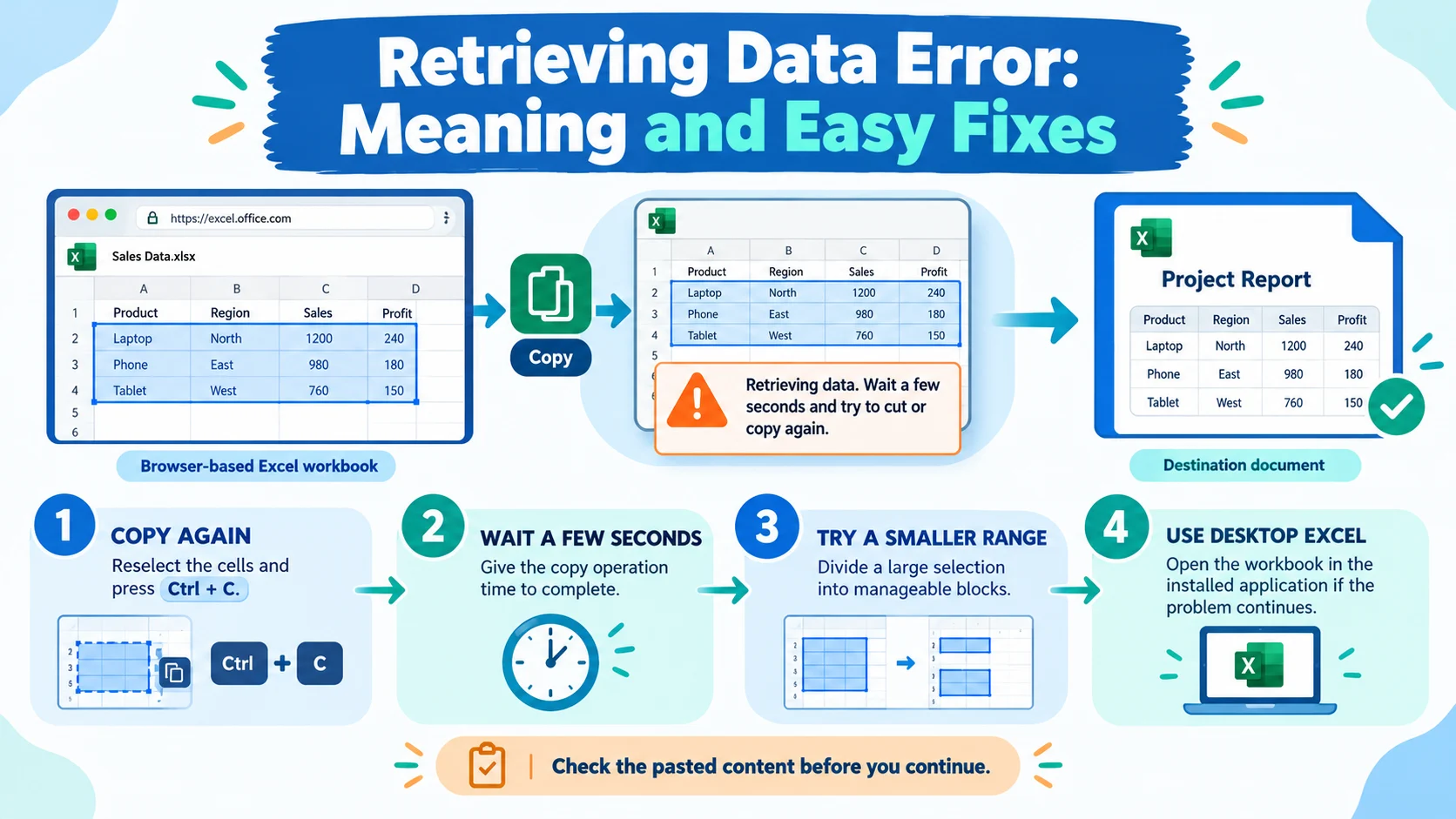
The message “Retrieving data. Wait a few seconds and try to cut or copy again” commonly appears when copying data from Excel for the web. It means the copy operation has not completed successfully, so the intended cells may not be available on the clipboard. To fix it, wait a few seconds, select the cells again, press Ctrl + C, and try pasting once more. If the problem continues, try copying a smaller range or opening the workbook in desktop Excel.
The message “retrieving data wait a few seconds and try to cut or copy again” can appear when you copy information from an online spreadsheet and attempt to paste it somewhere else. Instead of seeing your selected text, numbers, or formulas, you may see this unexpected message in the destination. Naturally, this can be frustrating when you are working on an important assignment, business report, or spreadsheet.
Most commonly, users encounter this message while working with Microsoft Excel for the web, including workbooks opened through Microsoft 365, OneDrive, or SharePoint. The issue relates to the copy or cut operation, although the exact cause can vary. For example, the browser may not have finished preparing the selected content, or the operation may fail intermittently when working with larger selections or formulas.
Fortunately, this message does not automatically mean that your workbook is damaged or that your original data has disappeared. In many cases, you can resolve the problem by repeating the copy operation and waiting briefly before pasting. However, persistent problems may require additional troubleshooting.
In this guide, you will learn what the message means, why it appears, how to fix it step by step, and how to prevent it from interrupting your work. You will also find practical examples, common mistakes, frequently asked questions, and an infographic prompt for a feature image.
What Does “Retrieving Data. Wait a Few Seconds and Try to Cut or Copy Again” Mean?
The message “Retrieving data. Wait a few seconds and try to cut or copy again” is associated primarily with copying or cutting information in Excel for the web.
In simple terms, Excel has not successfully completed the requested copy or cut operation. Consequently, the content you intended to transfer may not be available in the expected format when you try to paste it.
For instance, imagine that you select 20 spreadsheet cells containing names, dates, and prices. You press Ctrl + C and immediately switch to another application. When you press Ctrl + V, the destination displays the retrieving data message instead of your selected information.
This situation can occur when copying from an online workbook into desktop Excel, another workbook, an email, or another application.
The important point is that the message generally concerns the transfer of data, not the meaning of the data itself. It is not the same as a formula error such as #VALUE! or #REF!.
What Does the Message Mean in Simple Words?
In everyday language, the message means:
“The information you tried to copy is not ready to paste successfully. Please try copying it again after a short wait.”
The message asks you to repeat the operation rather than indicating that you must recreate the spreadsheet.
However, waiting alone may not solve every case. If the message keeps appearing, you may need to refresh the workbook, test a smaller selection, check browser permissions, or use the desktop application.
Quick Answer Table
| Question | Answer |
|---|---|
| What does the message mean? | The copy or cut operation did not complete successfully. |
| Where does it commonly appear? | Microsoft Excel for the web. |
| What is the quickest fix? | Reselect the cells, press Ctrl + C, wait, and paste again. |
| Does it mean data is lost? | No. The original workbook data may still be intact. |
| Can large selections contribute? | They can make copying more difficult in some situations. |
| What if the problem continues? | Try smaller selections, another browser, or desktop Excel. |
| Is there one guaranteed fix? | No. The best solution depends on the cause. |
Why Does the Retrieving Data Message Appear?
Several situations may contribute to this problem. Nevertheless, the exact cause is not always clear, and Microsoft has not published a universal explanation for every occurrence.
1. The Copy Operation Has Not Finished
One possible explanation is that the browser-based spreadsheet has not successfully prepared the selected content when you attempt to paste it.
This can happen when you switch between applications immediately after copying. Therefore, waiting briefly before pasting is a sensible first step.
Example: You copy a group of cells from an online spreadsheet and immediately paste them into an email. Instead of the expected table, the message appears.
What to do: Repeat the copy operation and allow a few seconds before switching applications.
2. You Are Copying a Large Range of Cells
Large selections may take longer to process than a single cell. For example, copying thousands of rows can involve more data than copying a short list.
However, there is no single published cell-count limit that explains every occurrence of this message.
What to do: Divide the selection into smaller blocks and copy them separately.
3. The Workbook Is Still Loading or Synchronizing
Online spreadsheets rely on browser sessions and cloud services. If a workbook is still loading or responding slowly, a copy operation may not work as expected.
An unstable connection may contribute to delays, but the message alone does not prove that your internet connection is responsible.
What to do: Check that the workbook is responsive, wait for recent changes to finish saving, and retry the operation.
4. The Browser Has a Clipboard Permission or Extension Issue
Browser settings and extensions can sometimes interfere with copying information from websites.
For example, a clipboard-management extension or a restrictive site permission may affect how a browser handles clipboard operations.
What to do: Test the workbook in a private browsing window or another supported browser. If copying works there, investigate the extensions and settings in your usual browser.
5. The Selection Contains Formulas or Complex Spreadsheet Content
Some users report this issue when copying cells containing formulas, particularly between online workbooks. However, formulas are not necessarily the cause, and plain values can also be affected.
What to do: Test a small selection of ordinary values. If that works, try copying the original range in smaller blocks or using desktop Excel.
6. The Problem Is Intermittent
Sometimes, the same operation works on one attempt and fails on another. This inconsistency makes it difficult to identify a single cause.
For example, you may successfully copy a table five times before encountering the message on the sixth attempt.
What to do: Repeat the operation carefully. If the problem continues across files and browsers, consider seeking Microsoft support, especially in a business environment.
How to Fix “Retrieving Data. Wait a Few Seconds and Try to Cut or Copy Again”
Try these solutions in order, starting with the simplest. You do not need to perform every step if an earlier solution resolves the problem.
Fix 1: Copy the Data Again
This is the best first step when the message appears unexpectedly.
- Return to the workbook where the original data is stored.
- Click another cell to clear the previous selection.
- Select the cells you want to copy again.
- Press Ctrl + C on Windows.
- Wait approximately five seconds while remaining on the workbook tab.
- Switch to your destination application.
- Press Ctrl + V to paste the information.
On a Mac, use Command + C and Command + V instead.
If the copy operation succeeds, your selected content should appear in the destination.
Tip: The five-second wait is a practical starting point, not a guaranteed technical requirement. If the workbook is still responding slowly, wait longer.
Fix 2: Copy a Smaller Number of Cells
If the first solution fails, reduce the size of your selection.
For example, instead of copying 1,000 rows at once, try copying 100 rows at a time.
Follow these steps:
- Return to the original spreadsheet.
- Select a smaller section of the data.
- Press Ctrl + C.
- Wait briefly.
- Paste the selection into the destination.
- Repeat with the next section.
- Check the final row count and totals.
This approach can help when a large selection contributes to the problem.
Nevertheless, smaller selections are a workaround rather than proof that the original range was too large.
Fix 3: Open the Workbook in Desktop Excel
If you have the installed version of Microsoft Excel, try opening the workbook there.
- Open the workbook in Excel for the web.
- Look for the Open in Desktop App option. Depending on the interface, it may appear under the Editing menu.
- Open the workbook in the installed Excel application.
- Wait for the file to finish loading.
- Select the cells you need.
- Press Ctrl + C.
- Paste the data into your destination.
Desktop Excel uses a different application environment from the browser-based version. As a result, it can avoid problems associated with the web copy operation.
If you cannot find the option or do not have desktop Excel installed, try downloading a copy of the workbook instead.
Fix 4: Download a Copy of the Workbook
Downloading the workbook provides another way to work with the data outside the browser.
- Open the workbook in Excel for the web.
- Find the download option in the File menu.
- Download a copy in Excel workbook format if available.
- Open the downloaded file in desktop Excel or another compatible spreadsheet application.
- Copy and paste the required information.
- Compare the copied information with the original workbook.
Important: If other people are editing the online workbook, changes may continue after you download your copy. A downloaded file may not contain their later edits.
Also, downloading a copy does not automatically synchronize changes back to the online version. Make sure you know which version is authoritative before editing or sharing the file.
Fix 5: Refresh the Workbook
A stale or unresponsive browser session can sometimes contribute to copying problems.
Before refreshing, make sure your latest changes have been saved. If you are unsure, wait for the workbook to finish saving.
Then follow these steps:
- Return to the workbook tab.
- Confirm that recent changes have been saved.
- Refresh the browser page.
- Wait for the workbook to load completely.
- Select the desired cells again.
- Press Ctrl + C.
- Wait briefly and try pasting.
Avoid refreshing while unsaved changes may be at risk. If you cannot confirm that your work is saved, make a safe copy or resolve the saving issue first.
Fix 6: Test Another Browser
If the problem continues, open the same workbook in another supported browser.
For example, if you normally use Chrome, test Microsoft Edge or Firefox.
- Open the alternative browser.
- Sign in to the appropriate Microsoft account.
- Open the same workbook.
- Select a few cells.
- Copy them and wait briefly.
- Paste them into a simple destination, such as a text editor.
If the operation works in the second browser, the issue may be related to the original browser’s settings, extensions, or session.
If the message appears in both browsers, the cause may lie elsewhere. Try desktop Excel or continue with the remaining checks.
Fix 7: Check Clipboard Permissions
Browser-based applications may need permission to interact with the clipboard.
To investigate this possibility:
- Open the workbook in your browser.
- Locate the site information or permissions controls beside the address bar.
- Find the clipboard permission, if the browser provides one for the site.
- If access is blocked, consider allowing it for the trusted Microsoft site.
- Reload the workbook if necessary.
- Test copying again.
The exact menu names vary by browser and version.
Security tip: Grant clipboard permission only to a website you trust. Do not change security settings indiscriminately, and remember that a clipboard permission problem is only one possible explanation for this message.
Fix 8: Test a Private Browsing Window
A private browsing window can help determine whether an extension or the usual browser profile contributes to the problem.
- Open an Incognito window in Chrome or an InPrivate window in Edge.
- Sign in to Microsoft 365.
- Open the workbook.
- Copy a small selection.
- Wait briefly and paste it elsewhere.
If copying works in the private window, investigate extensions and stored site data in your regular browser.
If the message appears there too, the problem may not be related to your normal browser profile.
Keep in mind that private windows do not necessarily disable every extension, and you may need to sign in again.
Fix 9: Clear the Clipboard and Test Again
On Windows, clipboard history can help you inspect recently copied items.
- Press Windows + V.
- Review the clipboard history, if enabled.
- If appropriate, use the option to clear clipboard history.
- Return to the workbook.
- Select the cells again.
- Press Ctrl + C and wait.
- Try pasting the information.
Clearing clipboard history is not a guaranteed fix, and it may remove items you wanted to keep. Therefore, use it only when necessary.
Fix 10: Contact Microsoft Support
If none of the previous methods works, the problem may require further investigation.
Consider contacting Microsoft Support when:
- The issue occurs repeatedly across different workbooks.
- Several users in your organization experience the same problem.
- The message appears in multiple browsers.
- Copying formulas consistently fails.
- You have already tried the usual workarounds.
If you use a work or school account, your Microsoft 365 administrator may need to raise a support request.
Include the exact error message, the affected workbook environment, the browser and operating system, and the steps that reproduce the issue. This information can help narrow down the cause.
Quick Troubleshooting Comparison
| Problem | First Solution to Try |
|---|---|
| The message appears once | Copy again and wait briefly. |
| A large table fails to copy | Divide the data into smaller blocks. |
| The issue continues in Excel for the web | Open the workbook in desktop Excel. |
| The workbook is slow or unresponsive | Confirm saving is complete, then refresh. |
| One browser fails but another works | Investigate the original browser’s settings. |
| Clipboard access is blocked | Review the trusted site’s clipboard permission. |
| Several colleagues experience the problem | Contact the Microsoft 365 administrator. |
Real-Life Examples
Understanding common scenarios can help you identify the most practical solution.
Example 1: Copying Data Into Microsoft Word
A student copies a table of research results from Excel for the web into a Word document. Instead of the table, the student sees the retrieving data message.
Likely next step: Return to the workbook, select the table again, copy it, wait briefly, and paste it into Word.
If the problem continues, try copying a smaller section or opening the workbook in desktop Excel.
Example 2: Moving Formulas Between Workbooks
An accountant copies cells containing formulas from one online workbook to another. The paste operation fails intermittently.
Likely next step: Test a small selection. If formulas continue to trigger the issue, try desktop Excel and confirm that the formulas still refer to the correct cells in the destination workbook.
Remember that moving formulas between workbooks can change references. Check the results after pasting.
Example 3: Copying a Large Sales Report
A business employee tries to copy several thousand rows into another application, but the operation fails.
Likely next step: Copy the report in smaller blocks and compare row counts and totals afterward.
If this task is frequent, desktop Excel may offer a more convenient workflow.
Example 4: Copying From a Shared Workbook
A team member copies information from a workbook stored in SharePoint. The message appears even though the workbook opens normally.
Likely next step: Retry the copy operation and test desktop Excel. If multiple team members experience the same problem, ask the Microsoft 365 administrator to investigate.
The message alone does not establish whether the cause is the shared workbook, the browser, or the service.
Example 5: Pasting Into an Online Form
Someone copies a value from Excel for the web and pastes it into an online form. The form receives the error message instead of the intended number.
Likely next step: Reopen the workbook, copy the correct value, and verify the pasted content before submitting the form.
This final check is especially important when submitting financial figures, contact information, or other important details.
Common Mistakes to Avoid
Although the message can be annoying, a few common mistakes can make troubleshooting more difficult.
1. Pasting Repeatedly Without Copying Again
Pressing Ctrl + V several times may simply paste the same unwanted message.
Instead, return to the source, select the cells again, and repeat the copy operation.
2. Assuming the Original Data Has Disappeared
The message does not automatically mean that your spreadsheet data is lost.
Check the original workbook before making major changes or attempting recovery.
3. Refreshing Before Checking Saved Changes
Refreshing can interrupt work that has not finished saving.
Therefore, confirm that your changes are saved before reloading the page.
4. Reinstalling Office Immediately
Reinstalling Microsoft Office is usually an excessive first step for a message associated with copying from Excel for the web.
Try the simpler solutions first. Consider repairing or reinstalling software only if separate evidence suggests an application installation problem.
5. Ignoring the Accuracy of Pasted Data
Even when the paste operation works, formulas, formatting, and cell references may not behave as expected in the destination.
Check important values, totals, and formulas before using the copied information.
How to Prevent the Retrieving Data Message
You cannot prevent every intermittent copying problem, but good habits can reduce interruptions.
- Wait before pasting: Allow the browser a few seconds to complete the copy operation.
- Use smaller selections when necessary: Copy large reports in manageable sections.
- Check saving status: Make sure recent changes are saved before refreshing or switching applications.
- Use desktop Excel for demanding tasks: This may be more practical when you regularly transfer large amounts of data.
- Keep your browser updated: Updates can resolve unrelated compatibility or stability problems, although they do not guarantee a fix.
- Review pasted content: Confirm that the intended cells or text actually arrived.
- Keep a backup of important work: This protects against accidental changes and other problems.
- Report persistent issues: If the problem affects an organization, share reproducible details with the administrator.
These habits help you work more reliably without assuming that every occurrence has the same cause.
Retrieving Data Error vs. Other Excel Errors
The retrieving data message is different from several other Excel problems.
| Message or Problem | What It Usually Indicates |
|---|---|
| Retrieving data. Wait a few seconds and try to cut or copy again. | A copy or cut operation did not complete successfully. |
| #VALUE! | A formula encountered an inappropriate value or argument. |
| #REF! | A formula contains an invalid cell reference. |
| #NAME? | Excel does not recognize a name or part of a formula. |
| Workbook not saving | The latest changes may not have been saved successfully. |
| Clipboard permission denied | The browser may be blocking clipboard access. |
These issues require different troubleshooting methods. Consequently, identifying the exact message is an important first step.
Advantages and Limitations of the Main Fixes
Advantages
Retrying the copy operation is quick and does not require changing any settings.
Copying smaller blocks can make large transfers easier to manage and verify.
Using desktop Excel can avoid problems specific to browser-based copying.
Testing another browser helps determine whether the original browser environment contributes to the issue.
Limitations
Waiting does not guarantee that the operation will succeed.
Smaller blocks require additional time when transferring large reports.
Desktop Excel may not be available to every user, and downloaded copies may become outdated when other people continue editing the online workbook.
Finally, changing browser permissions or clearing clipboard history may not help if the actual problem lies elsewhere.
For these reasons, start with the simplest fix and move to more involved troubleshooting only when necessary.
Exercises With Answers
Test your understanding with these practical questions.
1. What does the retrieving data message commonly indicate?
A. The workbook has definitely been deleted.
B. The copy or cut operation did not complete successfully.
C. All spreadsheet formulas are incorrect.
Answer: B. The message indicates a problem with the copy or cut operation.
2. What should you try first?
A. Reinstall Windows.
B. Delete the workbook.
C. Select the cells again, copy, wait briefly, and paste.
Answer: C. Retry the operation before attempting more complicated fixes.
3. What can you do if a large selection repeatedly fails?
A. Divide the selection into smaller blocks.
B. Delete half the workbook permanently.
C. Ignore the pasted content.
Answer: A. Smaller blocks can help you identify whether the selection contributes to the problem.
4. Does this message prove that your data has been lost?
Answer: No. Check the original workbook. The message does not, by itself, indicate data loss.
5. What should you do if several colleagues experience the same issue?
Answer: Record the circumstances and ask your Microsoft 365 administrator or Microsoft Support for assistance.
Frequently Asked Questions
1. What does “retrieving data wait a few seconds and try to cut or copy again” mean?
It generally means that Excel for the web has not completed the copy or cut operation successfully. As a result, the intended data may not be available for pasting. Retry the operation and wait briefly before pasting.
2. Why does Excel paste the error message instead of my data?
The message may be placed on the clipboard instead of the selected content when the copy operation fails. Consequently, the destination receives the message rather than the expected cells.
3. How do I fix the retrieving data error quickly?
Return to the workbook, select the cells again, press Ctrl + C, wait a few seconds, and paste again. If that does not work, try a smaller selection or open the workbook in desktop Excel.
4. Does the error mean my Excel file is corrupted?
No. The message alone does not establish that the workbook is corrupted. Check whether the original file opens normally and whether its data remains intact.
5. Can a slow internet connection cause this message?
A slow or unstable connection may contribute to delays in a web-based application. However, the message can occur for other reasons, so test the basic copy operation before assuming your internet connection is responsible.
6. Why does the message appear when copying formulas?
Some users report the problem when copying formulas between online workbooks. Nevertheless, formulas are not the only possible cause. Test a smaller range or use desktop Excel to determine whether the issue persists.
7. Will clearing my browser cache fix the error?
It may help if the browser has a session or site-data problem, but it is not a guaranteed solution. Try copying again, testing a private window, and checking browser permissions first.
8. Is the error specific to Google Chrome?
No. Reports describe the message in different browsers. If it occurs in Chrome, test another supported browser to see whether the problem is limited to your usual browser environment.
9. Can I recover the data after seeing the message?
In most cases, you should first check the original workbook. If the original data remains there, copy it again. If you accidentally overwrote important cells, use Undo when appropriate or restore an available version of the workbook.
10. Should I use Ctrl + C or the right-click menu?
Start with Ctrl + C, wait briefly, and then paste. If that fails, try another supported copy method or use desktop Excel. No single copy method is guaranteed to resolve every case.
11. Why does the message appear only sometimes?
The problem may depend on the browser session, selected content, application responsiveness, or other conditions. Because the message does not identify one universal cause, intermittent failures may require testing more than one solution.
12. Is there an official permanent fix?
There is no single universally applicable fix established by the message itself. Common workarounds include copying again, reducing the selection size, using desktop Excel, and testing browser settings. Persistent organizational problems may require Microsoft Support.
Conclusion
The message “Retrieving data. Wait a few seconds and try to cut or copy again” is commonly associated with unsuccessful copy or cut operations in Excel for the web. Although it can interrupt your work, it does not automatically mean that your spreadsheet is damaged or that your original information has disappeared.
The best starting point is simple: select the cells again, press Ctrl + C, wait briefly, and try pasting once more. If the issue continues, copy smaller sections, check your browser environment, refresh only after confirming your changes are saved, or open the workbook in desktop Excel.
Ultimately, the right solution depends on the circumstances. By checking the original data, testing one change at a time, and verifying the results, you can troubleshoot the problem without making unnecessary changes to your computer or workbook.